Taking Photos with the Camera
Now for the fun part - adding the ability to take photos with the device’s camera using the Capacitor Camera API. We’ll begin with building it for the web, then make some small tweaks to make it work on mobile (iOS and Android).
Photo Service
All Capacitor logic (Camera usage and other native features) will be encapsulated in a service class. Create PhotoService using the ionic generate command:
ionic g service services/photo.service
Open the new services/photo.service.ts file, and let’s add the logic that will power the camera functionality. First, import Capacitor dependencies and get references to the Camera, Filesystem, and Storage plugins:
import { Injectable } from '@angular/core';
// CHANGE: Add the following import
import { Camera, CameraResultType, CameraSource } from '@capacitor/camera';

@Injectable({
  providedIn: 'root',
})
export class PhotoService {}
Next, define a new class method, addNewToGallery(), that will contain the core logic to take a device photo and save it to the filesystem. Let’s start by opening the device camera.
import { Injectable } from '@angular/core';
import { Camera, CameraResultType, CameraSource } from '@capacitor/camera';

@Injectable({
  providedIn: 'root',
})
export class PhotoService {
  // CHANGE: Add the gallery method
  public async addNewToGallery() {
    // Take a photo
    const capturedPhoto = await Camera.getPhoto({
      resultType: CameraResultType.Uri,
      source: CameraSource.Camera,
      quality: 100,
    });
  }
}
Notice the magic here: there's no platform-specific code (web, iOS, or Android)! The Capacitor Camera plugin abstracts that away for us, leaving just one method call - Camera.getPhoto() - that will open up the device's camera and allow us to take photos.
Next, in tab2.page.ts, import the PhotoService class and add a method to call its addNewToGallery method.
import { Component, inject } from '@angular/core';
// CHANGE: Import the Ionic standalone components used on this page
import {
  IonHeader,
  IonToolbar,
  IonTitle,
  IonContent,
  IonGrid,
  IonRow,
  IonCol,
  IonImg,
  IonFab,
  IonFabButton,
  IonIcon,
} from '@ionic/angular';
// CHANGE: Register the camera icon used by the FAB
import { addIcons } from 'ionicons';
import { camera } from 'ionicons/icons';
// CHANGE: Import the PhotoService
import { PhotoService } from '../services/photo.service';

@Component({
  selector: 'app-tab2',
  templateUrl: 'tab2.page.html',
  styleUrls: ['tab2.page.scss'],
  // CHANGE: Add the standalone component imports
  imports: [
    IonHeader,
    IonToolbar,
    IonTitle,
    IonContent,
    IonGrid,
    IonRow,
    IonCol,
    IonImg,
    IonFab,
    IonFabButton,
    IonIcon,
  ],
})
export class Tab2Page {
  // CHANGE: Inject the PhotoService
  public photoService = inject(PhotoService);

  constructor() {
    // CHANGE: Register the icons this page uses
    addIcons({ camera });
  }

  // CHANGE: Add `addPhotoToGallery()` method
  addPhotoToGallery() {
    this.photoService.addNewToGallery();
  }
}
In a standalone app there is no global icon registry, so each icon you reference by name (like camera) must be registered with addIcons. Import the specific Ionic components a page uses from @ionic/angular and list them in the component's imports array.
Then, open tab2.page.html and call the addPhotoToGallery() method when the FAB is tapped/clicked:
<ion-header [translucent]="true">
  <ion-toolbar>
    <ion-title> Photo Gallery </ion-title>
  </ion-toolbar>
</ion-header>

<ion-content [fullscreen]="true">
  <ion-header collapse="condense">
    <ion-toolbar>
      <ion-title size="large">Photo Gallery</ion-title>
    </ion-toolbar>
  </ion-header>

  <ion-fab vertical="bottom" horizontal="center" slot="fixed">
    <!-- CHANGE: Add a click event listener to the floating action button -->
    <ion-fab-button (click)="addPhotoToGallery()">
      <ion-icon name="camera"></ion-icon>
    </ion-fab-button>
  </ion-fab>
</ion-content>
If it's not running already, restart the development server in your browser by running ionic serve. On the Photo Gallery tab, click the Camera button. If your computer has a webcam of any sort, a modal window appears. Take a selfie!
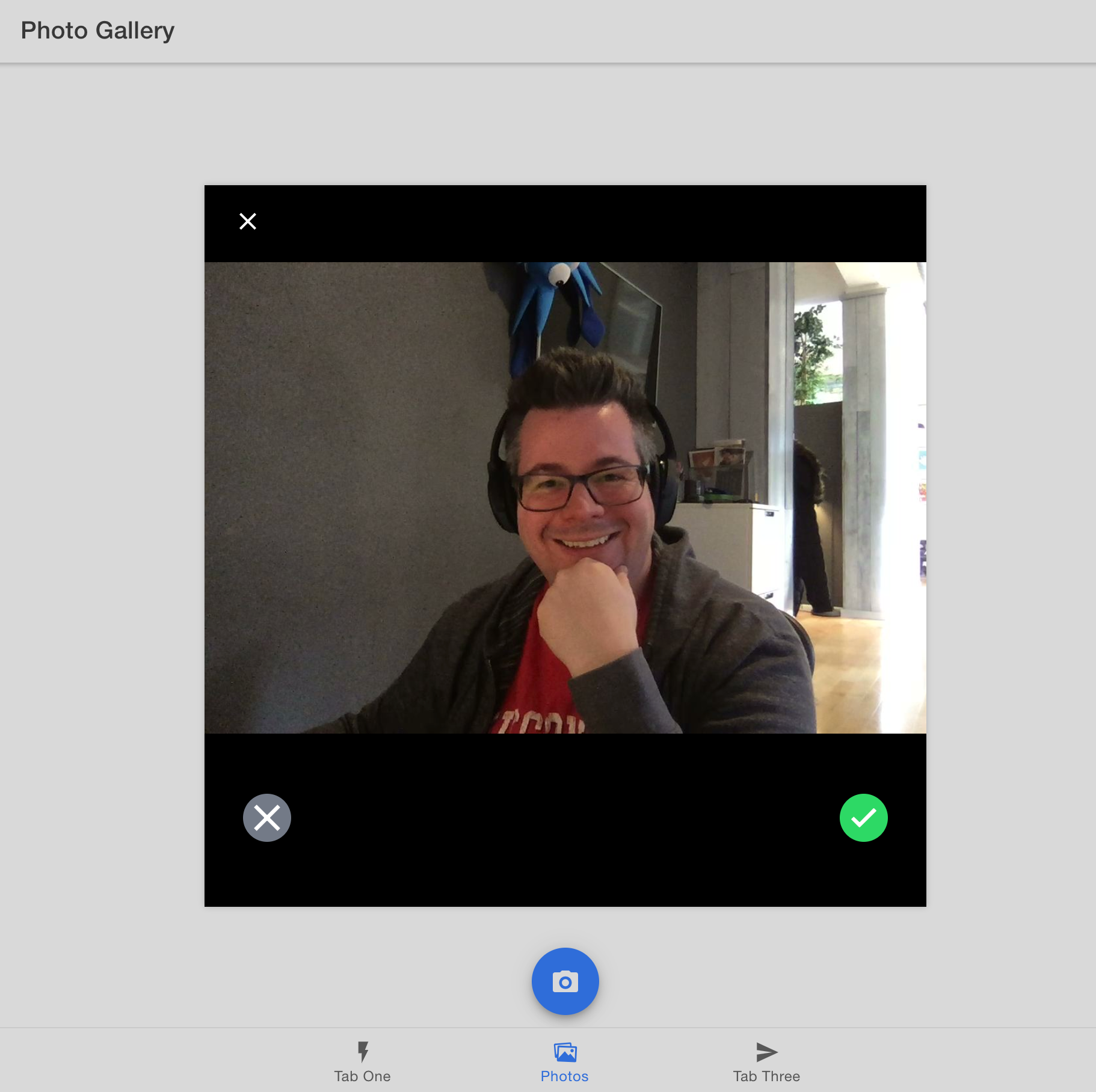
(Your selfie is probably much better than mine)
After taking a photo, it disappears right away. We need to display it within our app and save it for future access.
Displaying Photos
To define the data structure for our photo metadata, create a new interface named UserPhoto. Add this interface at the very bottom of the photo.service.ts file, immediately after the PhotoService class definition:
export class PhotoService {
  // ...existing code...
}

// CHANGE: Add the `UserPhoto` interface
export interface UserPhoto {
  filepath: string;
  webviewPath?: string;
}
Above the addNewToGallery() method, define a signal that holds an array of UserPhoto, which will contain a reference to each photo captured with the Camera. A signal is used so that the gallery view updates automatically when photos change - important in a zoneless app, where mutating a plain array would not trigger a re-render.
export class PhotoService {
  // CHANGE: Add the `photos` signal
  public photos = signal<UserPhoto[]>([]);

  public async addNewToGallery() {
    // ...existing code...
  }
}
Over in the addNewToGallery method, add the newly captured photo to the beginning of the photos signal. Reading and updating a signal is done by calling it: this.photos() returns the current value, and this.photos.update() sets a new one.
// CHANGE: Update `addNewToGallery()` method
public async addNewToGallery() {
  // Take a photo
  const capturedPhoto = await Camera.getPhoto({
    resultType: CameraResultType.Uri,
    source: CameraSource.Camera,
    quality: 100
  });

  // CHANGE: Add the new photo to the front of the photos signal
  this.photos.update((photos) => [
    {
      filepath: 'soon...',
      webviewPath: capturedPhoto.webPath!,
    },
    ...photos,
  ]);
}
photo.service.ts should now look like this:
import { Injectable, signal } from '@angular/core';
import { Camera, CameraResultType, CameraSource } from '@capacitor/camera';

@Injectable({
  providedIn: 'root',
})
export class PhotoService {
  public photos = signal<UserPhoto[]>([]);

  public async addNewToGallery() {
    // Take a photo
    const capturedPhoto = await Camera.getPhoto({
      resultType: CameraResultType.Uri,
      source: CameraSource.Camera,
      quality: 100,
    });

    this.photos.update((photos) => [
      {
        filepath: 'soon...',
        webviewPath: capturedPhoto.webPath!,
      },
      ...photos,
    ]);
  }
}

export interface UserPhoto {
  filepath: string;
  webviewPath?: string;
}
Next, switch to tab2.page.html to display the images. We'll add a Grid component so the photos display neatly as they're added to the gallery. Inside the grid, loop through each photo in the PhotoService's photos signal with the built-in @for block - calling photoService.photos() reads the signal's current value. For each item, add an Image component and set its src property to the photo's path.
<ion-header [translucent]="true">
  <ion-toolbar>
    <ion-title> Photo Gallery </ion-title>
  </ion-toolbar>
</ion-header>

<ion-content [fullscreen]="true">
  <ion-header collapse="condense">
    <ion-toolbar>
      <ion-title size="large">Photo Gallery</ion-title>
    </ion-toolbar>
  </ion-header>

  <!-- CHANGE: Add a grid component to display the photos. -->
  <ion-grid>
    <ion-row>
      <!-- CHANGE: Create a new column and image component for each photo -->
      @for (photo of photoService.photos(); track photo.webviewPath; let position = $index) {
      <ion-col size="6">
        <ion-img [src]="photo.webviewPath"></ion-img>
      </ion-col>
      }
    </ion-row>
  </ion-grid>

  <ion-fab vertical="bottom" horizontal="center" slot="fixed">
    <ion-fab-button (click)="addPhotoToGallery()">
      <ion-icon name="camera"></ion-icon>
    </ion-fab-button>
  </ion-fab>
</ion-content>
Within the web browser, click the camera button and take another photo. This time, the photo is displayed in the Photo Gallery!
Up next, we’ll add support for saving the photos to the filesystem, so they can be retrieved and displayed in our app at a later time.